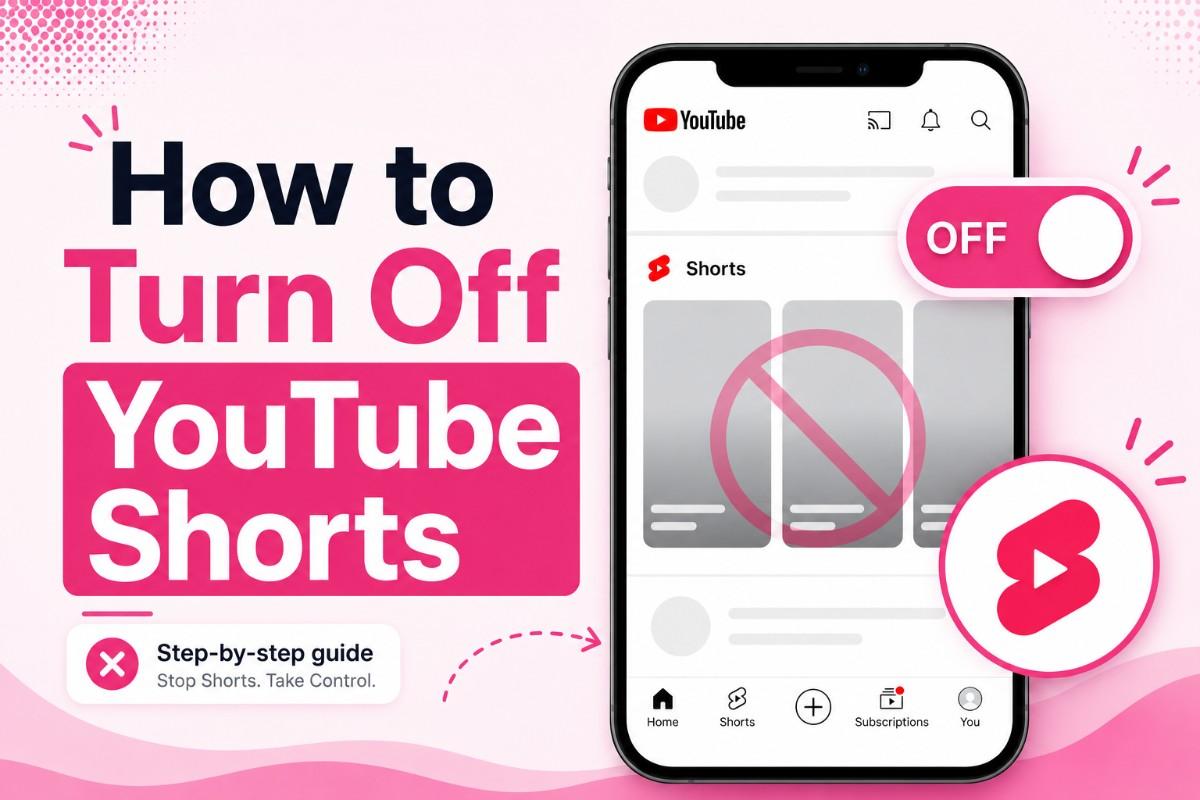

You cannot completely turn off YouTube Shorts with a single setting, but you can get very close. In 2026, YouTube introduced a zero-minute Shorts feed limit, which removes Shorts from your home feed entirely. Combined with a few other methods, you can build a nearly Shorts-free experience on both mobile and desktop.
I’ve tested every method below. Here’s exactly what works, what doesn’t, and which option makes the most sense depending on how you use YouTube.
- YouTube has no single switch to turn off Shorts completely
- The zero-minute Shorts feed limit (April 2026) is the most effective mobile method
- Browser extensions permanently block Shorts on desktop
- ScrollGuard is the only truly permanent mobile solution
- Turning off Shorts does not affect your subscriptions or regular video feed
Why So Many People Want to Turn Off YouTube Shorts
Before we get into the how, it’s worth understanding the scale of what you’re up against.
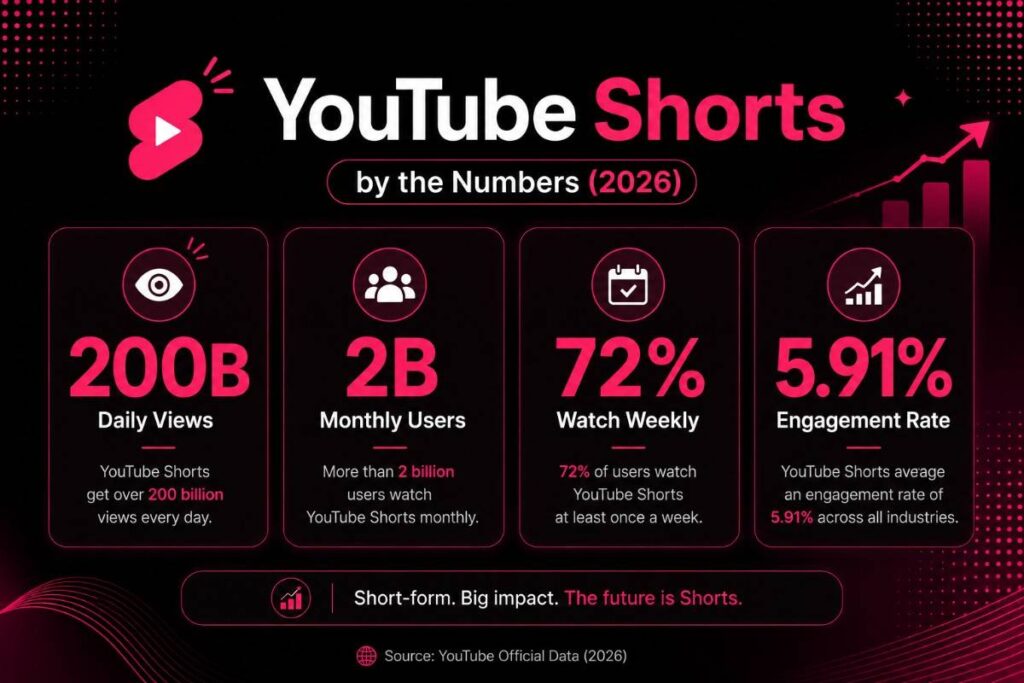
YouTube Shorts now generates over 200 billion daily views — up from 70 billion just a year earlier. (Source: Teleprompter)
The platform has 2 billion monthly active users watching Shorts, and 72% of YouTube users watch Shorts at least once per week. (Source: Loopex Digital)
YouTube is not going to make Shorts easy to remove. The feature is one of its fastest-growing revenue drivers.
How to Turn Off YouTube Shorts
The frustration is completely valid. Shorts are designed for endless scrolling, and if you open YouTube to watch a tutorial or catch up on a channel you subscribe to, having Shorts interrupt your feed is genuinely annoying.
Here’s what you can actually do about it.
Method 1: Set Your Shorts Feed Limit to Zero Minutes (Mobile — Newest Method)
Best for: iPhone and Android users who want Shorts completely gone from their home feed.
This is the newest and most effective method. In April 2026, YouTube added a zero-minute option to its Shorts feed limit, which effectively removes Shorts from your home feed entirely.
How to do it:
- Open the YouTube app on your phone
- Tap your profile picture in the top right corner
- Tap Settings (the gear icon)
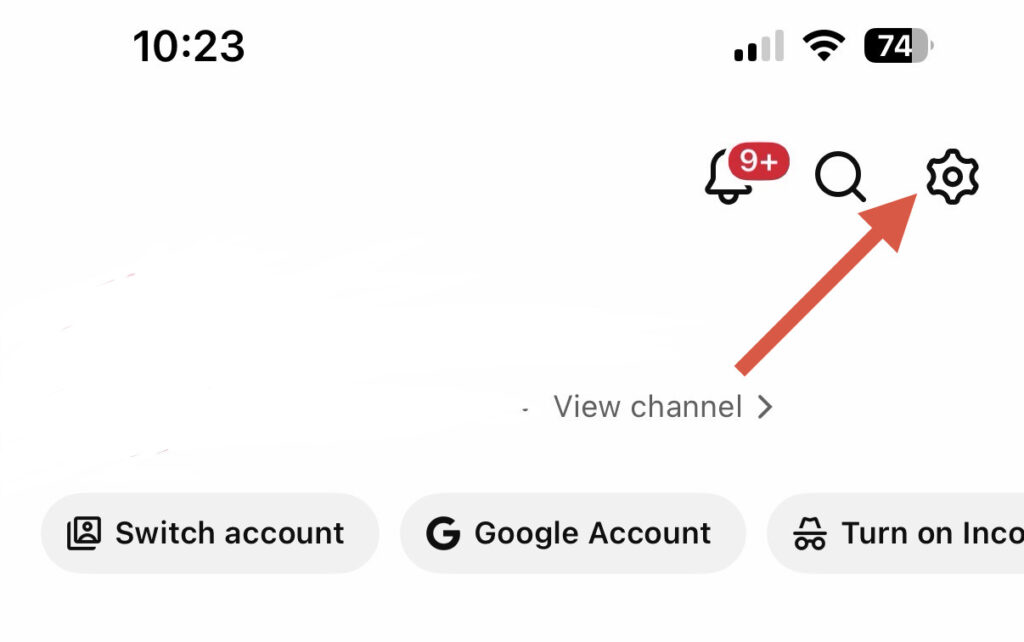
- Tap Time management
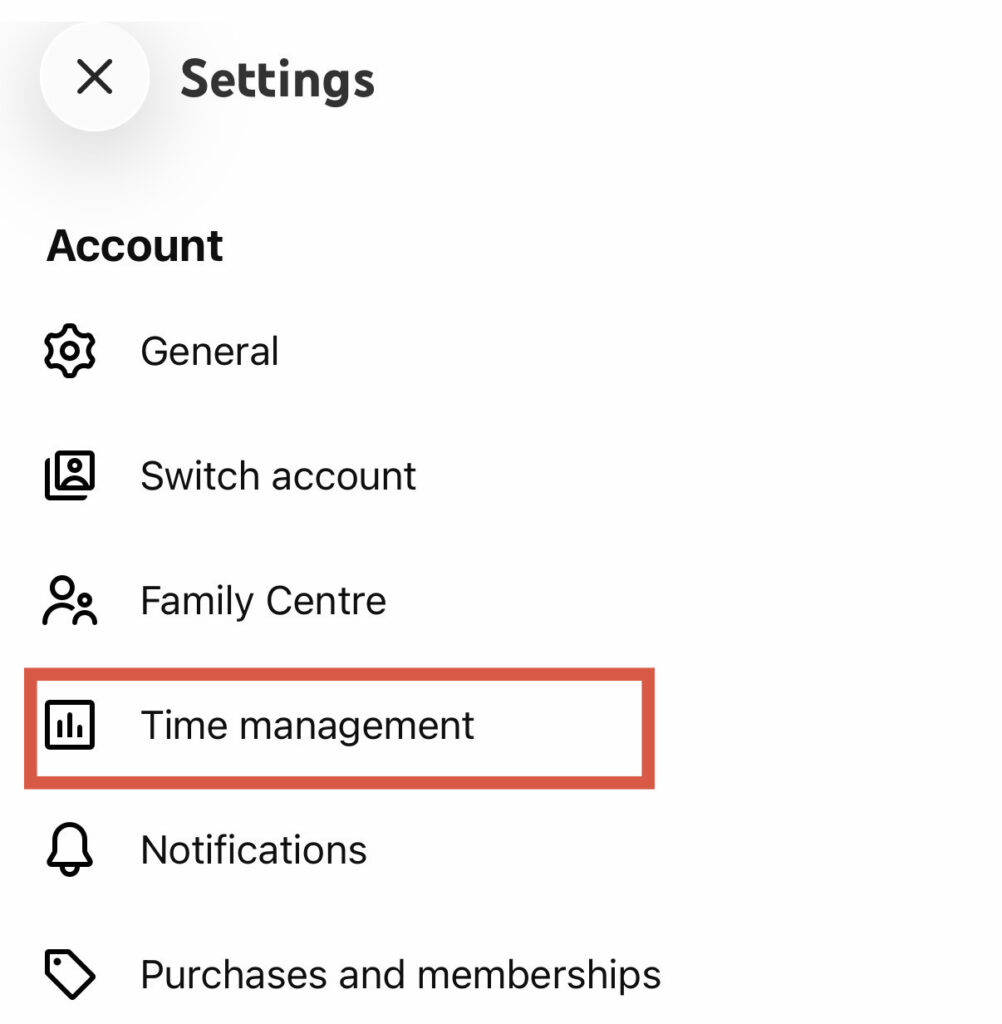
- Under Daily limits, find Shorts feed limit
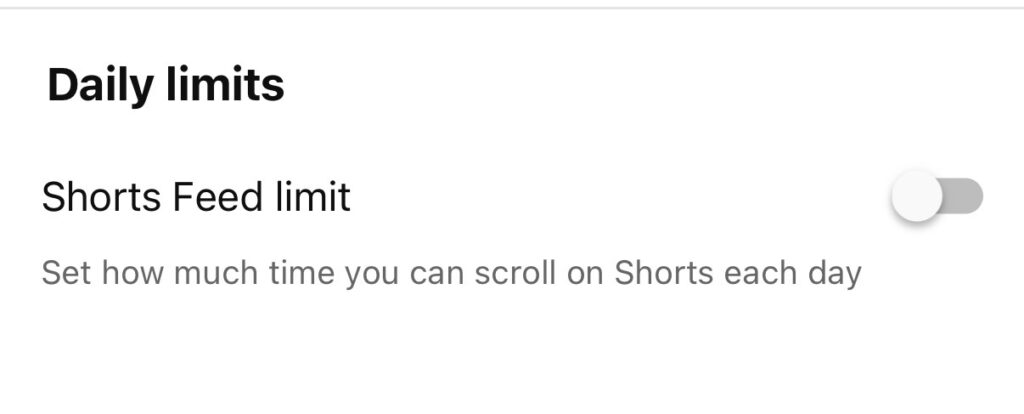
- Toggle it ON
- Set the limit to 0 minutes
Once set, Shorts will stop appearing on your home feed.
One thing to know: Individual Shorts may still occasionally appear in search results or recommendations. The zero-minute limit targets your home feed specifically; it’s not a total block across the entire app.
Also: This feature is still rolling out. If you don’t see the zero-minute option yet, check that your YouTube app is fully updated. If it’s still not showing, your account may not have received it yet. Use Method 2 in the meantime.
Method 2: Tell the Algorithm to Show Fewer Shorts (Mobile)
Best for: Users who want fewer Shorts without touching settings.
This is the quickest method and works on both iPhone and Android right now.
How to do it:
- Open YouTube and scroll down your home feed until you hit the Shorts section
- Tap the three dots (⋮) next to the Shorts shelf
- Tap “Show fewer Shorts”
You can also do this on individual Shorts:
- Tap the three dots (⋮) on any Short you don’t want to see
- Tap “Not Interested”
The more you do this, the more YouTube’s algorithm learns that you don’t want Shorts in your feed. I’ve found this works reasonably well in the short term, but Shorts do creep back in over time, especially after you watch a few accidentally.
It’s a good supplementary method, but not a permanent fix on its own.
Method 3: Pause Your Watch History (Mobile and Desktop)
Best for: Anyone who wants to stop YouTube from personalising Shorts recommendations entirely.
YouTube uses your watch history to personalise what Shorts it shows you. Turn that off, and the algorithm loses its ability to target you with content you’re likely to get sucked into.
On mobile:
- Open YouTube and tap your profile picture
- Tap Settings
- Tap History and privacy
- Tap Pause watch history
On desktop:
- Go to youtube.com and click History in the left sidebar
- Click Pause watch history
- Optionally, click Clear all watch history to reset your recommendations from scratch
The trade-off: Pausing watch history also affects your regular video recommendations. YouTube won’t remember what channels you like or what you’ve already watched. For some people, this is fine. For others, it’s too much of a sacrifice.
Method 4: Use the Desktop Version Instead of the App
Best for: People who mainly watch YouTube at home or on a computer.
The desktop version of YouTube (youtube.com in a browser) gives you more control over what you see. You can click “Show fewer Shorts” on the Shorts shelf the same way as on mobile, and the experience is generally less algorithmically aggressive than the app.
On a desktop, you can also install browser extensions that block Shorts entirely, which brings us to Method 5.
Method 5: Use a Browser Extension to Block Shorts (Desktop)
Best for: Desktop users who want a permanent, complete Shorts block.
If you use YouTube primarily on a computer, this is the most effective long-term solution.
Recommended extensions:
“Hide YouTube Shorts” — A free Chrome extension that removes Shorts from your feed, subscriptions, search results, and channel pages. It’s lightweight and has strong reviews.
Tampermonkey with a Shorts-removal script — More technical, but highly configurable. You can set it to remove Shorts from specific pages only — home feed, search results, subscriptions — while keeping everything else intact. (Source: GitHub)
How to install a Chrome extension:
- Go to the Chrome Web Store
- Search for “Hide YouTube Shorts”
- Click Add to Chrome
- Done — Shorts disappear immediately
These extensions work in Chrome, Edge, and Brave. Firefox users can find similar add-ons in the Firefox Add-ons store.
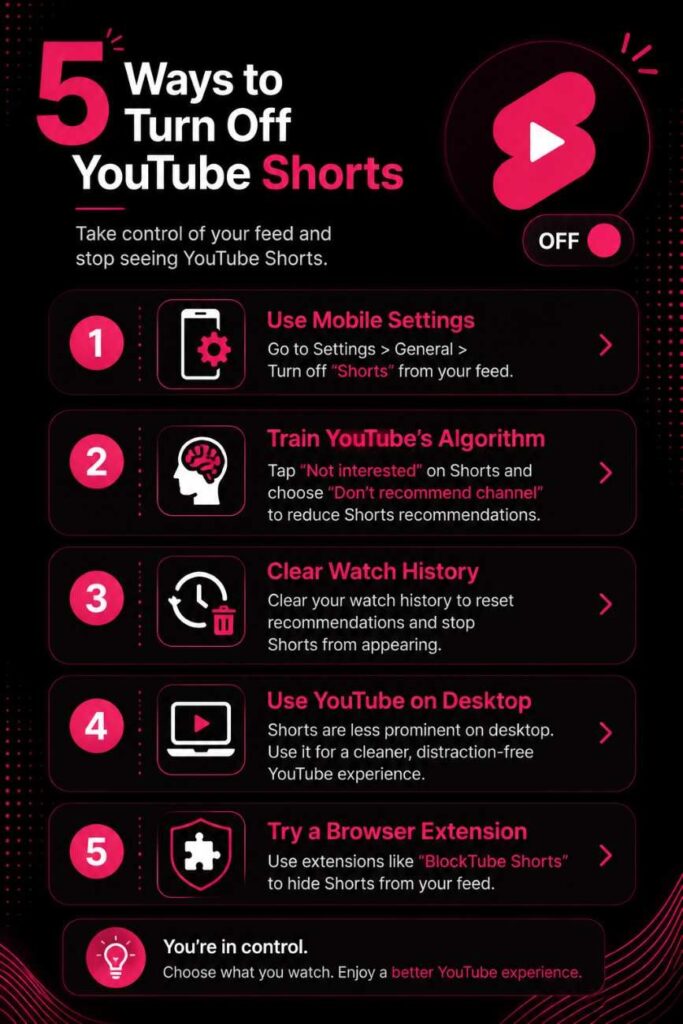
What You CANNOT Do
Let’s be straight about the limits here.
- You cannot remove the Shorts tab from the bottom navigation bar of the YouTube app. It’s hardcoded into the interface and YouTube has no setting to hide it.
- You cannot permanently block all Shorts in search results using YouTube’s built-in settings alone. Shorts will still appear when you search for topics, even with the feed limit set to zero.
- The “Show fewer Shorts” option is not permanent. YouTube’s algorithm eventually resets, especially if you accidentally watch a Short or your viewing patterns change.
You can also read: YouTube users by country
Which Method Should You Use?
Here’s a quick guide based on your situation:
| Your Situation | Best Method |
| iPhone or Android user, want quick fix | Method 1 (zero-minute limit) |
| Just want fewer Shorts, not zero | Method 2 (Show fewer Shorts) |
| Desktop user, want permanent fix | Method 5 (browser extension) |
| Mobile user, want permanent fix | Method 6 (ScrollGuard) |
| Want to reset all recommendations | Method 3 (pause watch history) |
| Use YouTube mainly on computer at home | Method 4 (desktop + extension) |
I personally use Method 1 on mobile combined with Method 5 on desktop. That combination covers most use cases without needing a third-party app.
Final Thoughts
YouTube Shorts is not going away. With 200 billion daily views and 2 billion monthly active users, it’s one of the most-watched short-form video platforms on the planet. YouTube has every reason to keep pushing it.
But that doesn’t mean you have to watch it.
The zero-minute feed limit (Method 1) is the best starting point for most people. And if you’re mostly a desktop user, a browser extension solves the problem completely and for free.
Use YouTube the way you want to use it, not the way the algorithm wants you to.
Frequently Asked Questions
No. Turning off or limiting Shorts only affects the Shorts feed. Your subscriptions, notifications, and regular video recommendations are not affected.
No. Creators’ long-form videos will still appear normally in your feed. You’ll only stop seeing their Shorts content in the dedicated Shorts section.
Smart TV apps have the fewest options. There is currently no built-in setting to remove Shorts from the YouTube TV app. Your best option is to simply avoid the Shorts tab and use the search function to go directly to the content you want.
Yes. Once you set it, Shorts stop appearing on your home feed right away. There’s no delay.
YouTube has resisted adding a complete toggle for years. Shorts is one of their fastest-growing features, and they have little incentive to make it easy to disable. The zero-minute feed limit is the closest thing to a toggle they’ve ever offered.
You cannot directly turn off YouTube Shorts on your phone. Instead, you can restrict the time and pause it.